Assistant, search & quest
Assistant — ⌘J
The chat panel in the bottom-right corner is an agent over this workspace, not a help bot. It answers from your traces, clusters, cases and gates, and it can act: add an evaluator column, author a scenario, promote a regression case, set up an alert — “ping this Slack channel whenever a conversation fails the refund-policy judge”.
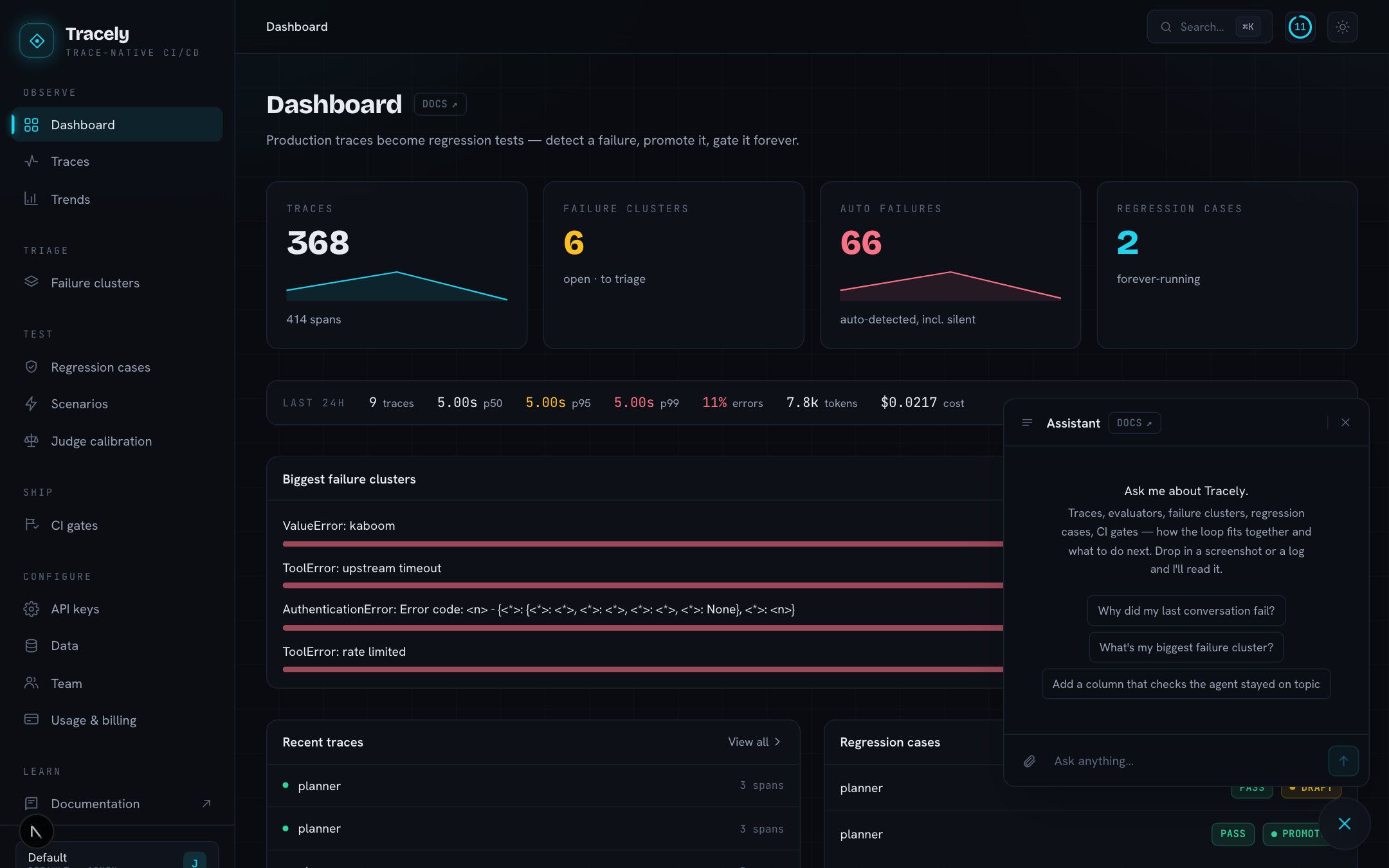
- A turn streams: the panel names the tool it is running (searching traces…, reading the cluster…), then types the answer. A turn can take tens of seconds when it reads a lot; Stop cancels it, and closing the panel cancels too.
- History — every conversation is kept; the back arrow lists them, + starts a new one. Coming back tomorrow reopens where you left off.
- Attachments — drop, paste or pick a file; images render inline, other files as chips.
- It knows where you are: ask “why did this one fail?” on a conversation page and it reads that conversation.
- It can set up an alert for you — “Slack me when the refund judge fails a live conversation” — and hands back a link to the rule. For anything multi-step (a condition, a model-written message, a webhook with its own headers) open the flow builder and ask there: it draws the whole flow onto the canvas, and a follow-up edits what it drew.
Whose key, whose reach. The assistant’s model runs on Tracely’s own key, so it works in a brand-new workspace with no key configured. Its tools call the same API you do, as you — it cannot see or change anything your account cannot, and a write it gets wrong is rejected by the same checks as a write of yours.
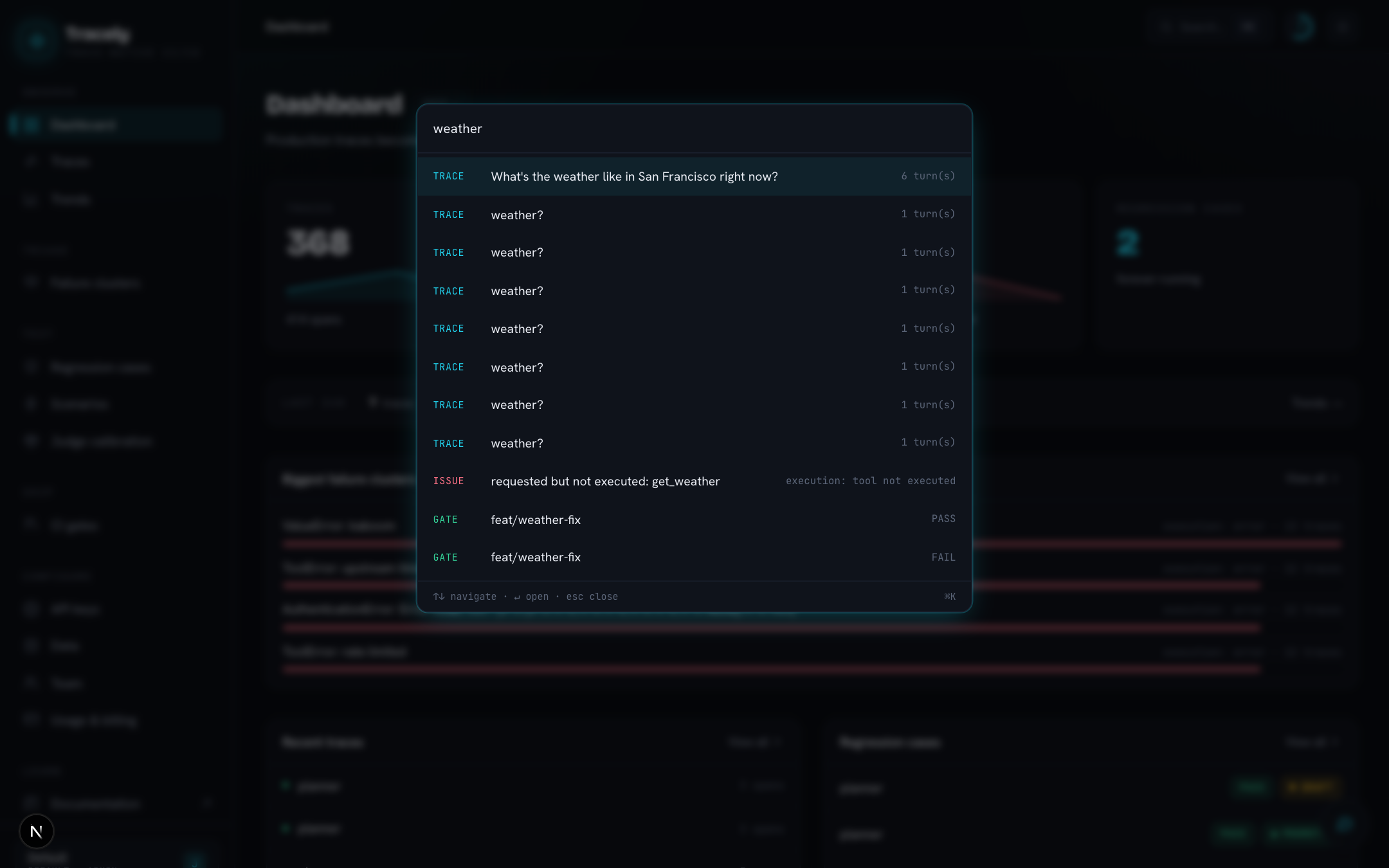
Command palette — ⌘K
Search conversations (by first message), issues, cases and gates from any page; arrow keys and Enter to jump.
Onboarding quest
The progress ring in the top bar. Twelve steps walk the loop once — grab the API key, connect an OpenRouter key, send a trace, open it, add an evaluator column, read Trends, watch a Replay, visit the Fleet, catch a failure, promote a case, gate a PR — plus three daily challenges, a score and a streak. Steps are read from real counts (a trace sent from the SDK ticks Send your first trace), so the quest finishes itself as you use the product. Reset it under Settings → Data.
Theme
The toggle in the top bar switches dark / light; the choice is per browser.