Using the app
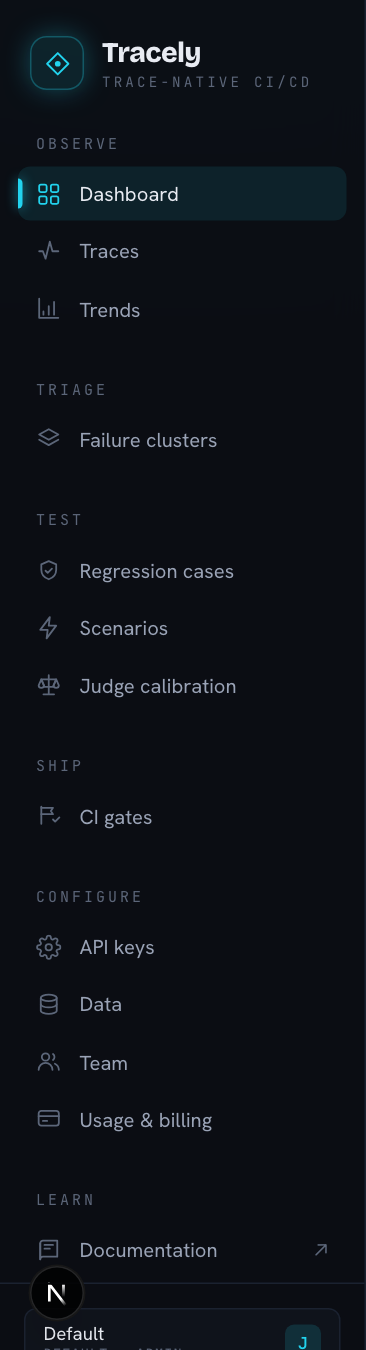
The dashboard is organised as one loop, top to bottom in the sidebar:
Observe → Triage → Test → Ship
- Observe — your agents send traces (Traces); every run is graded by the evaluator columns you configure; Trends shows how it moves over time.
- Triage — failing runs are grouped into issues (Failure clusters) so you look at kinds of failure, not one trace at a time.
- Test — a failing production trace is frozen into a forever-running regression case; Scenarios drive multi-turn conversations at your agent’s own endpoint; Judge calibration tells you whether the LLM judge can be trusted to block a merge.
- Ship — a pull request is gated on the agent’s regression suite and scenarios (CI gates).
Nothing here is hand-authored. There is no dataset to maintain: evaluations, clusters, cases, gates and trends are all derived from the traces your agent already produces. Delete a trace and everything that came from it is gone too.
Every screen links back here
Each page — and each panel that does something non-obvious — carries a small Docs ↗ pill next to its title. It opens the section of this guide that explains that feature: what it computes, what to click, and what the result means. The Documentation entry at the bottom of the sidebar opens this overview.
The screens
| Page | Answers | Guide |
|---|---|---|
| Dashboard | ”Is the loop closed?” — the activation checklist and headline counts | Dashboard |
| Traces | ”What did the agent do?” — conversation → message → step, with a grade per level | Traces & conversations |
| Evaluators | ”What counts as a failure?” — the checks and LLM judges that grade every run | Evaluators |
| Trends | ”Is it getting better?” — failure rate, gate pass-rate, latency/cost, and how metrics move together | Trends & cross-metric analysis |
| Failure clusters | ”What kinds of failure do we have?” | Failure clusters |
| Regression cases | ”Which production failures must never recur?” | Regression cases |
| Scenarios | ”Does the agent survive this conversation / this attack?” | Scenarios |
| Judge calibration | ”Does the LLM judge agree with a human?” | Judge calibration |
| CI gates | ”Can this PR ship?” | CI gates |
| Alerts | ”Tell me without me looking” — Slack/email/webhook on a failed gate, a broken conversation, a new failure mode | Alerts |
| Assistant · ⌘K · quest | Ask the workspace questions, jump anywhere, learn the product | Assistant, search & quest |
| Settings | Keys, data, team, billing | Settings |
Three shortcuts worth learning
- ⌘K — search conversations, issues, cases and gates from anywhere.
- ⌘J — open the assistant; it reads this workspace’s traces and can create evaluators, scenarios and cases for you.
- The progress ring in the top bar is the onboarding quest — twelve steps that walk the loop once, end to end.